Pixieset combines photo culling, editing, and delivery
A review of Pixieset Photo Editor: culling and editing RAW and JPEG files, AI Styles, masks, and delivering finished photos to clients through Pixieset galleries.

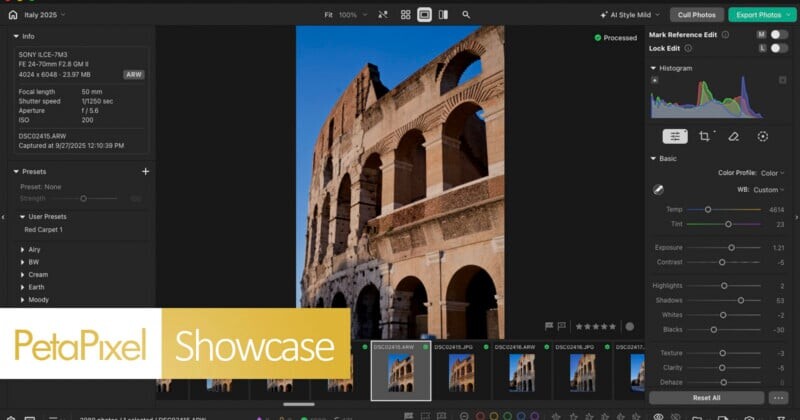
The new Pixieset editor for Windows, macOS, and the browser combines culling, RAW processing, and delivery of photos to client galleries. AI helps select images and coordinate a consistent style, while most features run locally.
Pixieset Photo Editor combines culling, editing, and delivery to clients
Pixieset has added a full-featured photo editor to its tools for photographers. The service, which has been developing client galleries since 2013 and later expanded its offerings with website builders and booking and invoicing tools, now covers image editing as well. Photo Editor lets photographers cull images, edit RAW and JPEG files, apply AI-powered batch editing, and send finished photos directly to Pixieset Client Gallery.
Before the editor was introduced, photographers had to move photos between an editing program and the Pixieset system. The new tool is designed to connect the stages of a shoot in one workflow: from booking a client to culling, editing, and delivering the finished work. It does not replace Pixieset's existing services, but adds full RAW and other-format processing to them.
The editor is available as an application for Windows and macOS, as well as in a browser—for example, if the app is not installed on a particular computer. For macOS, Pixieset recommends a computer with at least an Apple M1 processor; for Windows, an RTX 2060 graphics card or newer. Google Chrome is the preferred browser, though Safari and Firefox are also supported.
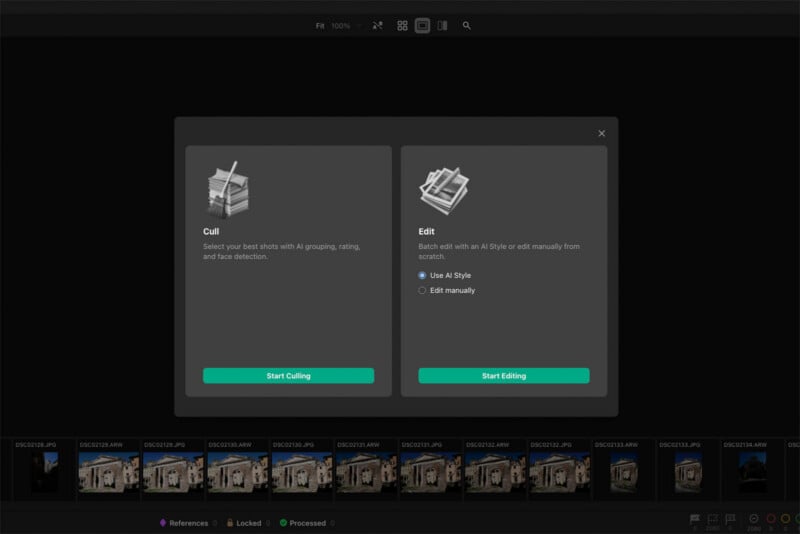
Installing the desktop version is straightforward, and the initial setup introduces the main elements of the interface. Photos can be opened from local storage; SSDs and NAS devices are also supported. This means most work can be done without constantly accessing the cloud.
Local processing and privacy
Most AI features run directly on the device. The exceptions are AI Generate and AI Erase, which use models hosted on Pixieset's servers. The company says these features do not send data to third-party services. According to Pixieset, images, references, and user-created editing styles are not used to train AI models—including the company's own models.
This approach may matter to photographers who work with client photos and do not want to send them to external AI services. However, some features, including generative tools, are subject to credit limits.
A project-based system instead of a shared catalog
Work in Photo Editor is organized around projects. Imported images remain in their original location, while the editor catalogs them within a separate shoot. This helps keep jobs separate and makes it easier to deliver finished work to a specific client's gallery.
Each project is linked to a catalog file, which the program saves in the folder containing the photos. This makes it possible to resume editing from the same point on another computer: you just need the folder with the photos and the catalog file on both machines. An external drive can be used to transfer files between a home computer, studio, and laptop. If the necessary files are on the drive, switching between devices works without significant difficulties.
AI-powered image culling
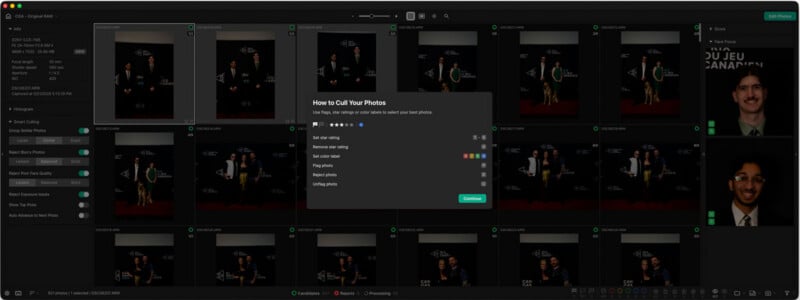
After photos are uploaded, a project is created. First, the photographer selects culling parameters; once culling is complete, they can apply AI Style or move on to manual editing. AI looks for strong images, groups similar photos, and flags potential issues such as blur or closed eyes.
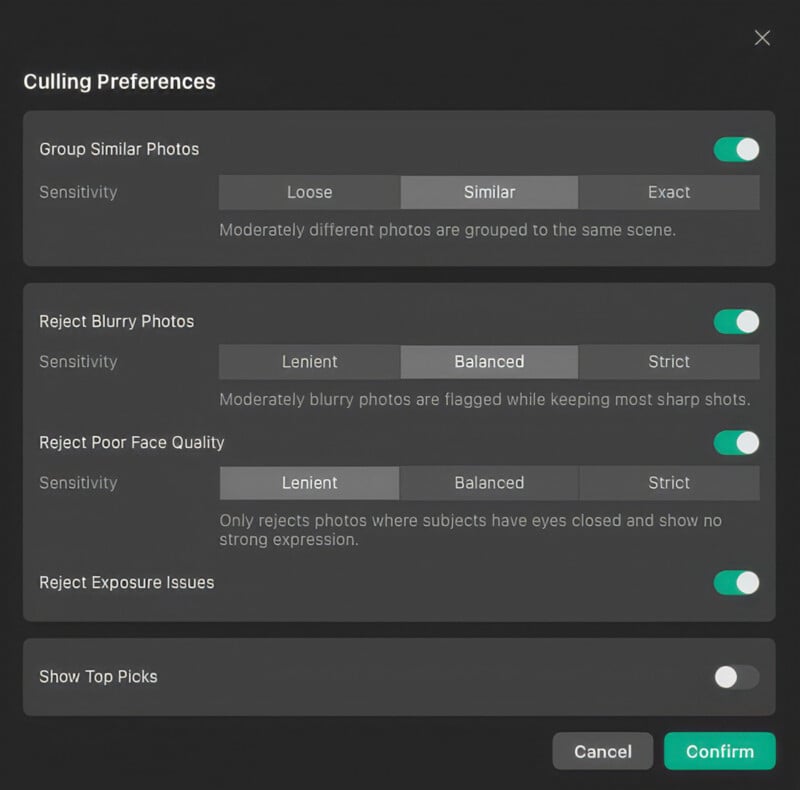
Users set how strict the culling should be. The program can make decisions automatically, but the results depend on the selected parameters and can sometimes be surprising. The final decision always remains with the photographer: individual images can be added back to the selection or excluded manually.
For culling, you can set a target number of images under Top Picks. For example, you can request the 300 best photos from a set of more than 3,000. Rejected images do not disappear: the interface displays them separately from Top Picks and suitable candidates. The selection takes into account factors such as lighting, sharpness, and facial expression. Groups are shown at the bottom of the interface and marked with colors. Users can adjust the results with their own flags, labels, and ratings.
AI Styles: editing based on a reference
There are several ways to create an initial look. You can create an AI Style based on a previous Pixieset gallery, choose one of the service's built-in styles, or upload sample images for the AI Color Match feature.

AI Style is designed to edit an entire series, rather than be applied to a single frame. The program does not apply the same slider values to every photo; instead, it tries to adapt the adjustments to each image while preserving a consistent overall look. This sets AI Styles apart from regular Lightroom, Capture One, or Affinity presets.
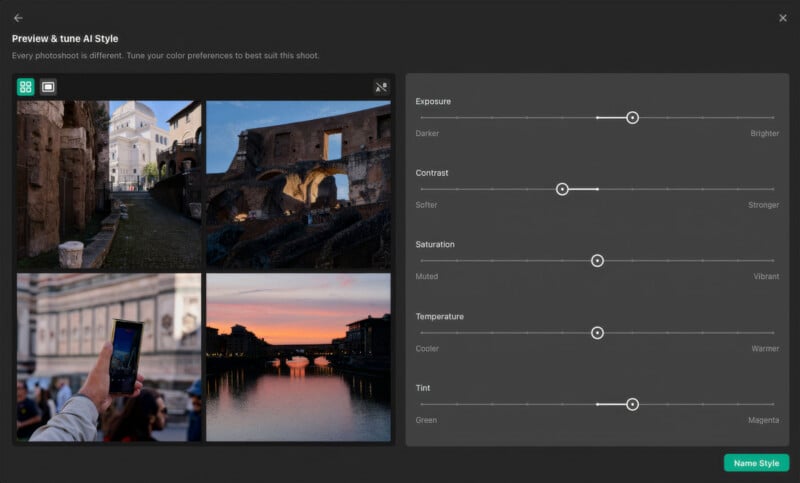
Before applying a style, the editor shows four different frames from the project to demonstrate how the result might look across the series. At this stage, sliders are available for exposure, contrast, saturation, color temperature, and tint. Changes appear immediately on the four examples, selected to reflect differences in color, tonality, shadows, and subject matter. This lets the photographer assess how the overall edit will look on varied images.
Pixieset describes creating a style as a starting point—a “head start”—that should then be refined. AI does not know the exact adjustment values and does not transfer masks applied to an individual image. Instead, it analyzes visual characteristics such as color, contrast, brightness, and tonality. The company estimates this is enough to get about 70% of the way to the desired result; the photographer makes the remaining adjustments with the available tools.
An image edited with AI Style can be further adjusted and marked as a Reference. The editor will then apply similar adjustments to comparable frames in the same project. Multiple references can improve accuracy, but a single photo is not always suitable for a varied shoot. Different subjects, mixed lighting, interiors and outdoor scenes, flash, daylight, and low light may require separate examples.

Masks can also be included in a reference. If Adaptive Masking is enabled in the settings, Photo Editor will try to apply the same mask to other photos when an image is marked as a Reference. This works especially well for frames with similar compositions—for example, when the subject and background match. Other conditions may require adding new references. The algorithm looks for similarities between images, so for a low-light frame it may choose a more suitable example than a daylight reference.
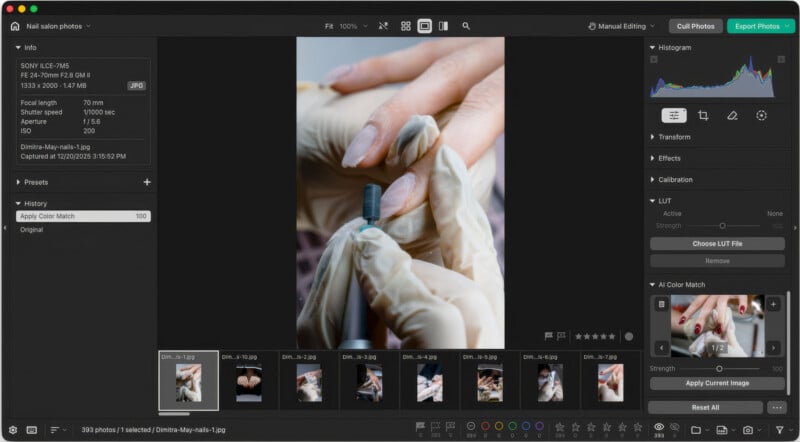
AI Color Match works separately. The user uploads a photo to serve as a guide for color and editing style, and the editor analyzes it and tries to bring the current frame closer to it. The result differs from AI Style; this tool may be more suitable when the main goal is to reproduce a specific color grade.
Manual tools, presets, and LUTs
Lightroom presets cannot be imported into Photo Editor, but a created style can be saved and used in other projects. The program also includes regular presets. Unlike AI Styles, they apply specific adjustment values to photos: the user edits a frame and then copies its settings to other images.
You can also start a project entirely manually, without AI Style. However, after making this choice, you cannot switch to an AI style without resetting the project: changing modes resets the project. Also, if work begins exclusively with manual editing, the Mark Reference feature is unavailable. Presets and LUTs can still be used. In this way, the initial choice determines the workflow that follows: edit manually based on an AI Style, or start from scratch without one.
The interface, especially the right-hand panel, is very similar to Lightroom, with a comparable slider layout and set of tools. Color controls include HSL, Point Color, color grading, and calibration, as well as temperature, tint, vibrance, and saturation settings. There are also controls for brightness, contrast, and geometry, along with cropping and masks. With its range of features, Pixieset aims to cover most of a photographer's typical needs.
Edits and masks can be copied to a single photo or a selected group without creating an AI Style or marking a frame as a Reference. To do this, right-click an image, choose Copy Edits, and, if needed, enable copying masks. Then select the target photos and choose Paste Edits. This method is also useful for applying the same crop to multiple images: AI Styles do not include crop settings.
The left-hand panel contains built-in presets, and photographers can create their own. To do so, select an edited image, open Presets, click “+,” choose Create preset, enter a name, and select the settings to save. The right-hand panel has a LUT section. It supports, among other formats, .cube files, which can be applied to a single frame or an entire group. Custom presets and LUTs can complement automated editing and adapt it to a familiar workflow.
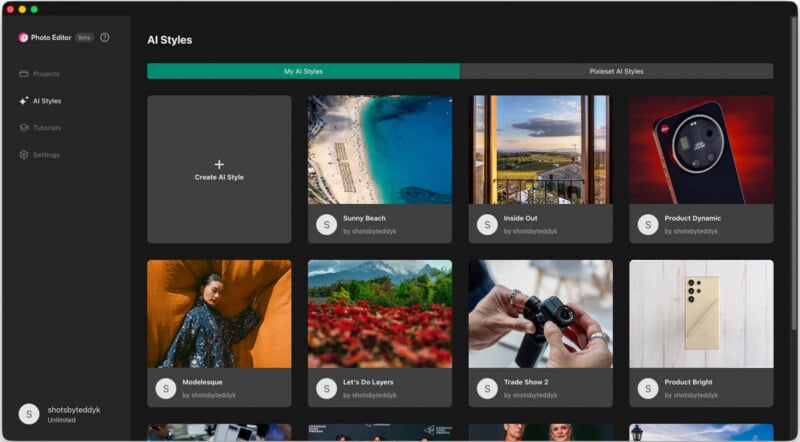
For a more predictable result, you can first choose an AI Style, then refine the image in the editing panel, add a LUT or apply AI Color Match if needed, and save the final result as a preset. This approach takes time but allows finer control over editing. Presets are especially useful when you need specific parameter values rather than an individual style for each frame. Based on practical use, this sequence can bring the workflow closer to what photographers expect from Lightroom or Capture One.
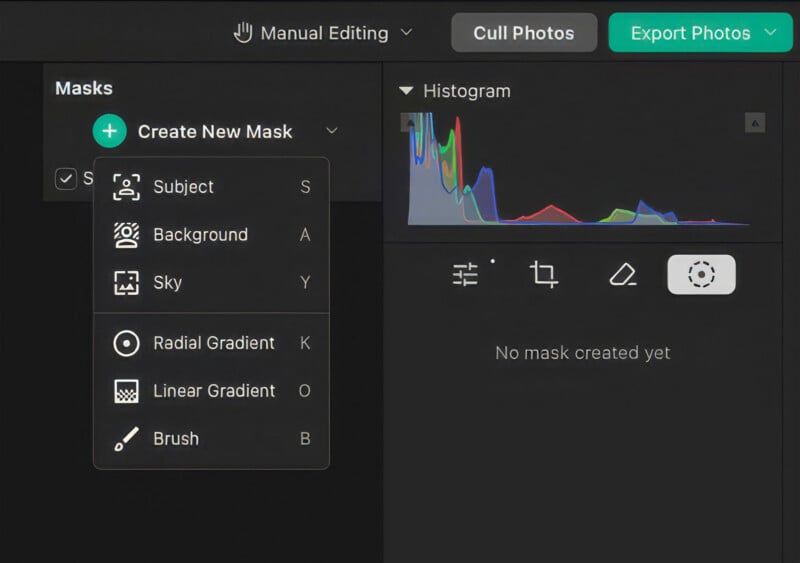
Masking tools include subject, background, and sky selection; linear and radial gradients; and a brush. Accuracy depends on the complexity of the image. In terms of mask detail, the tools fall short of Lightroom and DxO PhotoLab, but they are sufficient for many photos. You cannot separately select a face, skin, or clothing, even though face detection is used during culling. If there are several subjects in a frame, the editor may not always identify which one to select. It may also fail to determine where a subject ends relative to a hand or an object attached to it. A mask can be adjusted at any time with a brush or gradient.
Delivering photos to clients
Finished images can be exported directly to a Pixieset gallery. Before sending them, you can configure delivery settings: for example, prepare web-size files and add watermarks for a private client, or allow full-resolution downloads for a paid commercial job. The watermark appears only on previews and is not saved in downloaded files. Transfers from the editor to the gallery are fast.
The client gallery connection also works in the other direction. Clients can mark their favorite photos in the gallery, after which the selected frames can be moved to Photo Editor and refined in the original project. The updated versions are then synced back, preserving the changes.
The editor accepts JPEG and RAW files, and photos can be exported as JPEG, TIFF, and PSD. Supported import formats include ARW, RW2, CR2, CR3, CRW, DNG, HEIC, NEF, ORF, PEF, and RAF. Pixieset Gallery supports additional file types, including PNG, GIF, and RAW. RAW processing also works with Apple ProRAW photos from iPhone; RAW files from Android devices should open without problems as well.
Availability, limitations, and pricing
There is no mobile version of Photo Editor: the program runs on computers and in a browser. To continue a project across devices, you need access to the folder containing the photos and the catalog file. These can be stored on a portable or external SSD and connected to whichever computer you need.
Pixieset account holders can cull and edit an unlimited number of photos and projects at no cost. However, the free plan limits exports to 100 files and provides 100 Generative AI credits. Once the credits run out, a subscription is required to get more. It raises the limit to 250 Generative AI credits per month and removes the photo export limit.
If Generative AI credits run out, the Heal tool remains available in the AI section. Pixieset describes it as a non-AI tool, so it does not use credits.
Photo Editor is not included in the Pixieset Suite plan and is sold separately. Standalone access costs $18 per month or $144 per year—the equivalent of $12 per month. The plan includes unlimited culling, editing, and image exports, with no per-photo fees.
The information presented relates to the Pixieset Showcase format: it gives publication staff the opportunity to gain hands-on experience with products, while manufacturers can sponsor this testing and highlight features they consider important. At the same time, Showcase authors' evaluations are described as independent, and the format is not an endorsement of the product.